 |
For a CSV-format import-data file, the default field formats must comply with the requirements listed in the “Import file field requirements” or “Budget formats for CSV files”. If the import file does not comply with the appropriate format, you must create a format template (FMT) file so that Voyager can correctly read and import the data. For more information, see “Creating Import Files and Templates”.
|
1
|
|
2
|
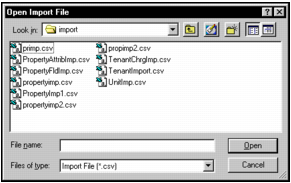
In the File name field, type the import file name, or you can use the screen to locate and double-click the file.
|
 |
|
3
|
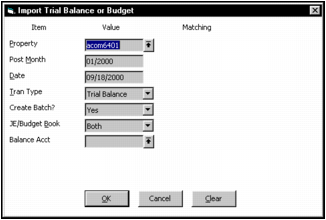
Voyager uses information from this filter screen, the import file, and certain defaults to create valid trial balance journal entries or budgets. The import file, together with the format-template file (if it exists), are the first location that Voyager searches for information. If the Property, Post Month, Date, or Balance Acct field are not in the import file, Voyager can substitute entries from the filter.
Property Type or select the code for the property associated with the trial balance or budget that you want to import. You can leave this field empty if the property information is included in the import file.
Post Month Type the default post month. Voyager uses this value for valid trial balances that do not have a post month.
Date If the import file does not contain a DATE field, type the default recording date for the imported transactions. If you leave this field empty, Voyager uses the system date as the default.
Create Batch Typically, you would select No. Budgets cannot be imported into a batch. If you select Yes, Voyager creates a batch journal entry.
JE/Budget Book Select the budget or general ledger book that will be affected by the import. Select Both for cash and accrual books.
Balance Acct Type or select a balance account, if needed. If the imported trial balance is out of balance, Voyager adds a balancing entry against the account in this field. If there is no balance account in this field or in the import-data file, Yardi recommends importing unposted batch types only.
|
|
|
5
|
Click OK. A confirmation message appears when the import is complete.
|
|
|