 |
|
1
|
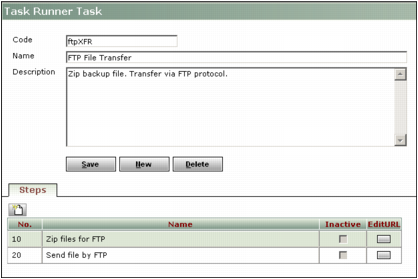
From the Voyager System Administration side menu, select Admin > Task Runner > Task > Add. The Task Runner Task screen appears.
|
|
3
|
 |
|
a
|
 . The
. The |
b
|
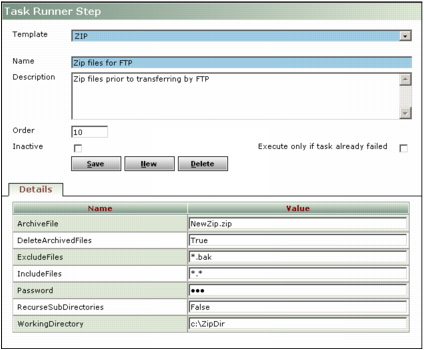
In the Template field, select the step template that applies to the task.
|
Task Runner completes the Name and Description fields, based on the step template that you select. You can change this information, if needed.
|
c
|
|
d
|
Complete the fields in the Value column, as needed. For more information, see “Task Runner Step Screen Reference”.
|
|
5
|
|
1
|
From the Voyager System Administration side menu, select Admin > Task Runner > Task > Review. The Task Runner Task filter appears.
|
|
2
|
Complete the filter, as needed, to locate the task that you want to review. Click Submit. The Task Runner Task screen appears.
|
|
3
|
|
5
|
Add new steps, as needed. If you want to review or edit a specific step in the Steps table, click the EditURL button in the row. The Task Runner Step screen for that step appears. For more information about editing a step, see “Task Runner Task Setup Examples”.
|
|
6
|
|
Displays the step templates that are provided with Task Runner. Select the template for the task that you want to configure. For more information about the available step templates, see “Task Runner Task Setup Examples”.
Task Runner completes the Name and Description fields, based on the selected template. You can change these, if needed.
|
|
|
NOTE Yardi recommends that you use multiple-digit order numbers (for example, 10, 20, 30). This enables you to add new steps between existing ones, without having to reorder the entire list.
|
|
|
Applies specific user-supplied values for the step parameters identified in the Name column. These fields contain variable information, depending on the task step template that you choose.
|