Custom menu sets can help groups to perform tasks more efficiency, while maintaining an advanced level of data security. For example, you may have two accounting groups, one for general bookkeeping and another for management-accounting tasks. The bookkeeping group performs bank reconciliations and needs access only to menu commands for reviewing income, expense, and ledger reports. The management-accounting group requires full access to all financial-accounting menu functions with complete data permissions. Using the Voyager Menu Editor screen, you can easily custom- configure separate menu sets to accommodate each group.
 |
Voyager users can access system functions and procedures from three primary menus: a side menu, a quick menu, and a title menu. A Voyager menu set contains command links for these three menus. Voyager menu sets are stored and maintained in the database.
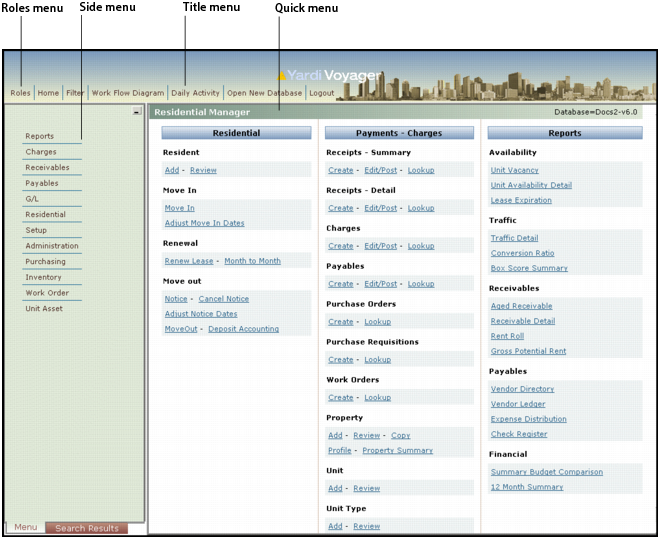
The side menu is located on the left side of the Voyager home page. This menu consists of headings and subheadings. Selecting a heading displays a list of subheadings. Selecting a subheading displays a screen (filter) for selecting a data record, or for performing a specific procedure or function.
The quick menu is located in the main part of the screen. A standard quick menu uses a column format. Each column contains section headings, item headings, and links. Clicking a link displays a screen (filter) for selecting a data record, or for performing a specific procedure or function.
You can also replace a standard quick menu with a specialized dashboard menu format. A dashboard provides a convenient way to review and perform daily transactions. Dashboards offer quick access to commonly performed tasks. Some standard dashboards included in Voyager are designed for property managers who perform residential, commercial, site, and leasing management procedures. For security groups that perform specialized tasks, a dashboard may be the best choice for the group's quick menu.
The title menu consists of button-links at the top of the Voyager screen. This menu serves as a shortcut for performing common tasks. The title menu is always visible, but the links can vary between different menu screens and menu sets.
 |
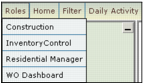
The Roles menu is part of the Voyager title menu. When you assign more than one menu set to a security group, the Roles menu permits users in the group to select the menu set that they want to use. You cannot delete or edit this menu from the Voyager Menu Editor screen. For more information, see “To select a default menu set for a security group”.
If you are upgrading from Voyager 4.5 and you want to use the same menus with Voyager 6.0 and later, you can convert your menus to menu sets that will operate with the latest system version. You can also import and export a group's menu sets between different databases. For more information, see “Menu Conversions, Exports, and Imports”.
 |
This section describes the elements and operation of the Voyager Menu Editor screen. Use the Voyager Menu Editor screen to add, configure, and review menus for security groups. The screen is divided into four sections, three of which are located on screen tabs. You can select the Side Menu, Quick Menu, or Title Menu tab to display configuration tools and command links for that menu. The Side Menu is the default tab in the screen.
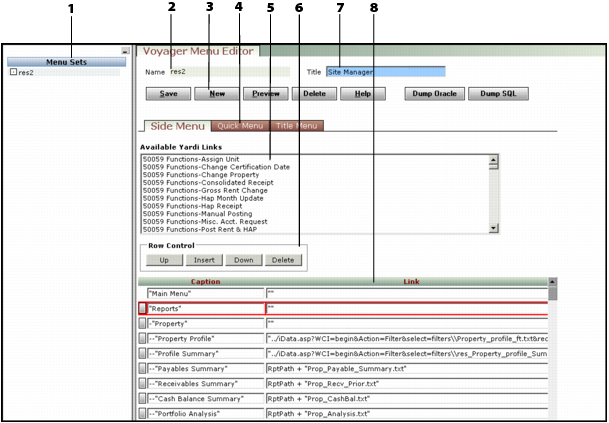
The following graphic shows an example of a typical Voyager Menu Editor screen, with the Side Menu tab active.
|
Menu Sets list
|
|
|
Menu set Name field
|
|
|
Available Yardi Links field
|
|
|
Row Control buttons
|
|
|
Menu Title field
|
|
|
Caption/Link table
|
A description of the elements on the Voyager Menu Editor screen follows:
Menu Sets Located on the left side of the screen, this navigation list contains all menu sets that are associated with the selected security group. If you use the Menu Sets filter to select all security groups, this list displays all menu sets for every group in the database.
Name This field displays the name of the selected menu set.
Title This field displays the name label that appears at the top of a side menu or quick menu. If you used a Yardi template to add the menu set, the template name appears in the field. You can change the name, if needed.
Save This button saves the menu set in the database.
New This button displays the Create New Menu Set filter, for adding a new menu set.
Preview Using this button, you can review the current menu set as it appears on user screens. You can click the button during editing to review your work-in- progress. On menu preview screens, you can also click most menu commands and links to test or review them.
Delete This button deletes the menu set.
|
|
The Delete button only appears for menu sets for which the security group has administrative access and menu deletion permissions. This button may not appear for some of the standard menu sets that are provided with Voyager. If a menu set is selected as the default or active menu set for a group, Voyager may not permit deletion.
|
Dump Oracle Clicking this button exports the menu set as an Oracle script package file. You can use this feature to back up your menus, both before (as baseline) and after you custom-configure them. You can then load the script package to import the menu set into the same, or to a different Voyager database (Oracle format). For more information, see “Exporting and Importing Menu Sets”.
Dump SQL Clicking this button exports the menu set as a SQL script package file. You can use this feature to back up your menus, both before (as baseline) and after you custom-configure them. You can then load the script package to import the menu set into the same, or to a different Voyager database (Microsoft SQL Server format). For more information, see “Exporting and Importing Menu Sets”.
Side Menu This tab contains the fields for formatting the side menu.
Quick Menu This tab contains the fields for formatting the quick menu.
Title Menu This tab contains the fields for formatting the title menu.
Available Yardi Links This field contains a list of command links that you can add to Voyager menus, using the Caption/Link table. Custom reports do not appear in this list.
Up and Down Use these buttons to modify the row placement in the Caption/Link table. The row positions in the table correspond to the order of command links on Voyager menus.
Insert Use this button to insert a new row in the Caption/Link table.
Delete Use this button to delete a row from the Caption/Link table.
Caption/Link This table contains heading labels and command links for a group's side menu, quick menu, or title menu, depending on the tab that you select.